How to export a CSV from Google Sheets
This guide shows you how to save your Google Sheet as a CSV file, ready to upload into Moments in Vine.
What you'll need
- Your wine list in a Google Sheet (one row per wine, with column headers in the first row).
- A few minutes to tidy your sheet into the defined format.
Step-by-step
Open the sheet you want to export
Navigate to Google Drive and open the spreadsheet containing your wine list. If the workbook has multiple tabs (for example, "Cellar", "Drunk", "Wishlist"), make sure you're in the tab you want to export.
Check your top row
The first row of your sheet should contain your column headers (for example: Name, Vintage, Region, Quantity). The importer uses these headers to figure out what each column means.
If your top row contains something else — a title like "My Cellar", a subtitle, a merged banner, or an empty row — delete those rows so your column names sit in row 1.
Export your cellear
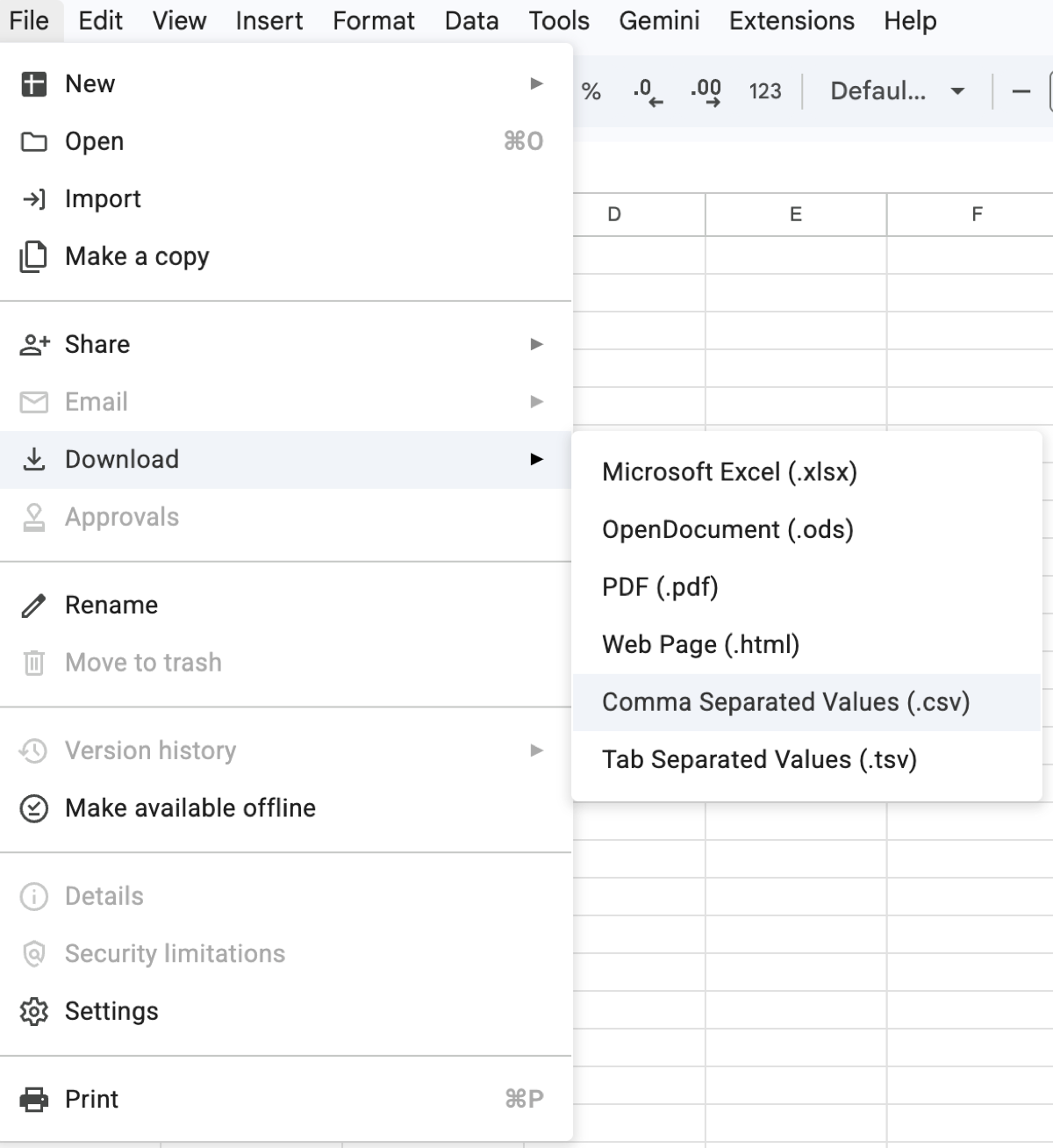
- In the top-left corner of Google Sheets, click File. A dropdown menu will appear with options like New, Open, Share, Download.
- Click Download. A second submenu will expand to the right, listing the available export formats (Excel, OpenDocument, PDF, CSV, TSV, and others).
- Select Comma-separated values (.csv). Your browser will download a file named after your spreadsheet (for example
Cellar.csv) to your Downloads folder. - Your browser will download a file named after your spreadsheet (for example
Cellar.csv) to your Downloads folder.
Verify the file downloaded
Open your Downloads folder and look for the .csv file. If you want to double-check the contents before uploading, you can open it in a text editor — it should look like rows of values separated by commas, with the first row matching your column headers.
Avoid re-opening the file in Excel to "check" it — Excel sometimes re-interprets dates and numbers on open, which can change the stored values. The downloaded file is what it is; the importer will show you a preview before anything is saved.
Common issues
Wrong tab exported
Google Sheets only exports the active sheet. If you got the wrong one, click the correct tab and repeat the export — the previous download isn't overwritten, so you'll have both files in Downloads.
Empty rows at the end
If your sheet has formulas or formatting extending beyond your actual data, the CSV may contain trailing blank rows. The importer ignores fully empty rows automatically, so this isn't usually a problem — but you can delete them in the sheet before exporting if you prefer a cleaner file.
Numbers showing as text
If a column like Vintage was formatted as text in Google Sheets (e.g. '2015), the leading apostrophe may appear in the CSV. The importer strips these automatically, so it's safe to leave as-is.
Next steps
With your CSV saved, walk through the remaining guides in order:
- Getting your cellar ready to import — check your column headers and required fields before upload.
- Importing your cellar — what happens when you upload, how errors and duplicates are handled, and the after-import summary.
Or head straight to sign up and upload.